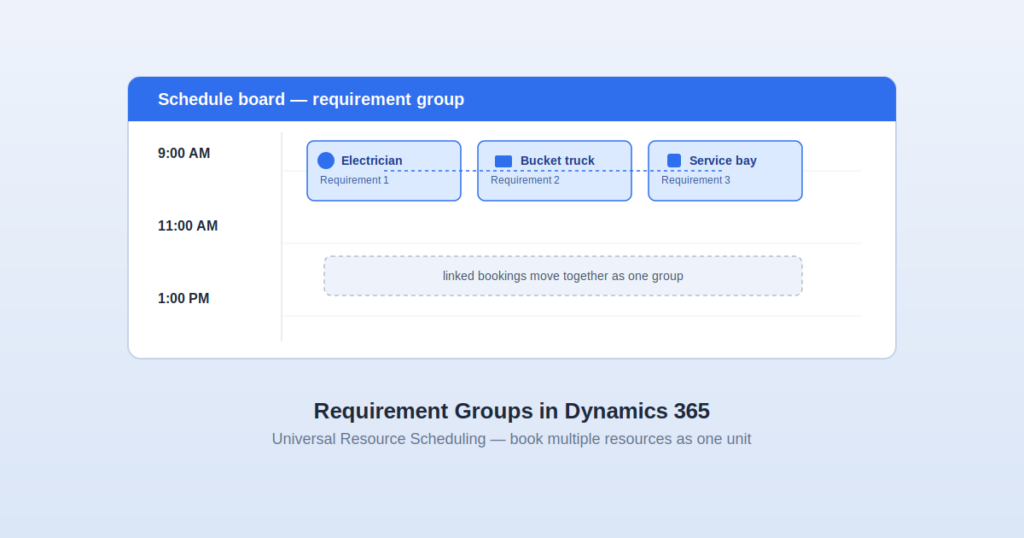
Field service dispatchers run into the same scheduling problem constantly: a job doesn’t need one technician, it needs three — a lead electrician, an apprentice, and a bucket truck — and all three have to show up at the same time. Booking each one separately, checking each one’s availability by hand, and hoping the timing lines up is slow and error-prone. Dynamics 365’s Universal Resource Scheduling (URS) has a purpose-built answer for this called requirement groups. This guide covers what they are, how they actually work under the hood, where they fit against similar-sounding features like crews and pools, and the practical gotchas that don’t show up until you’re building one for real.
Where Requirement Groups Fit in the Bigger Picture
To understand requirement groups, it helps to understand the model URS is built on. In Dynamics 365 Field Service, work orders define what needs to be done and where. Universal Resource Scheduling defines who does it and when. Every work order automatically generates a related requirement — a record that spells out what kind of resource can fulfill it. By default that’s a single requirement per work order. But real jobs are often more complicated than “assign one technician,” and that’s the gap requirement groups close: a work order, or any schedulable record, can have a requirement group made up of several requirements that all need to be booked together.
It’s also worth knowing that Universal Resource Scheduling isn’t exclusive to Field Service. It’s a shared scheduling engine used across Dynamics 365 Field Service, Customer Service, Project Operations, Sales, and Marketing, and it can be extended to schedule any custom table in Microsoft Dataverse. Requirement groups work the same way regardless of which app is driving the scheduling — the underlying entity is the same.
What a Requirement Group Actually Is
A requirement group is a container that bundles multiple individual requirements so the schedule assistant treats them as one bookable unit. Instead of running the schedule assistant three separate times for three separate roles and manually checking that the results overlap, you run it once against the group, and it searches for a combination of resources that can all be available for the same time slot.
This matters most in three recurring scenarios:
- Mixed skill sets — a job needs two technicians with different certifications (say, one licensed for gas work and one for electrical), not two interchangeable people.
- Technician plus asset — a job needs a person and a specific piece of equipment, like a specialist plus a company vehicle with lifting capacity, booked together.
- Facility plus staff — an appointment needs both a physical space (a room, a bay, a studio) and a specific person available in it at the same time — common in healthcare, professional services, and any business that schedules both people and physical assets.
Requirement Groups vs. Crews vs. Pools: Don’t Confuse These
This is where a lot of confusion happens, because URS has three different concepts that all involve “more than one resource,” and they solve different problems:
Requirement groups
These are for combinations that change from job to job. The set of resources needed this week might not be the set needed next week — maybe this job needs two electricians, the next needs an electrician and a plumber. The group is flexible by design, and each requirement in it is evaluated independently by the schedule assistant.
Crews
These are for a fixed group of people who always work together as a single unit and are never scheduled individually — think of a permanent cleaning crew or a survey team that has worked together for years. A crew is treated by the schedule board as one resource, not several. Microsoft’s own guidance is direct on this: if the same group of people always works together, use a crew instead of a requirement group, because it’s simpler to manage and doesn’t require rebuilding the combination for every job.
Resource pools
These are placeholders representing a set of interchangeable resources that share something in common — all electricians in a region, for instance. A pool gets scheduled first as a stand-in, then an actual individual from the pool is assigned later. Pools solve a different problem than requirement groups: pools are about deferring which specific person fills a role, while requirement groups are about combining several different roles into one booking.
There’s also a fourth related resource type worth knowing about: facilities, which represent a bookable physical location — a room, a service bay, a treatment suite. Facilities can be one of the individual requirements inside a requirement group (the “room + staff member” scenario above), which is different from crews and pools entirely.
How the Booking Behavior Actually Works
Building the template and clicking “Book” is only half the picture — what happens after the booking exists is where requirement groups behave differently from a handful of separate bookings, and this is the part most documentation glosses over.
When the schedule assistant books a requirement group, it doesn’t create one booking — it creates multiple linked bookings, one for each requirement in the group, all pointing back to the same group and time slot. Because they’re linked, moving one moves the others: drag one booking in the group to a new start time on the schedule board, and the other bookings in that same group shift automatically to match, keeping the whole team synchronized without you having to manually reschedule each person. This cascading behavior is controlled by a setting called Cascade Crew Changes on the booking’s Scheduling tab — if you need to change the duration of just one resource in the group without dragging the rest along with it, you turn that setting off for that individual booking before you make the change.
One practical quirk to know in advance: unlike crew bookings, where a shift on the schedule board updates instantly, a requirement group’s linked bookings sometimes need a manual refresh of the schedule board to visually reflect the shift, even though the underlying records have already moved. If a rescheduled group looks wrong on the board immediately after dragging it, refresh before assuming the reschedule failed.
Two Matching Modes: All vs. Any
When you configure a requirement group template, you choose how strictly the schedule assistant should match it:
- All (the default) — every requirement in the group must be fulfilled. If the group needs an electrician, an apprentice, and a truck, the schedule assistant only returns results where it can satisfy all three simultaneously.
- Any — the group is satisfied if any one of its requirements can be fulfilled. This is less commonly used on its own, but becomes powerful in combination with subgroups.
Subgroups let you build conditional logic that a flat list of requirements can’t express. Set the root group to Any and build two subgroups underneath it, each set to All — the schedule assistant then searches for either the complete set in subgroup one or the complete set in subgroup two, giving you an “option A or option B” structure for jobs that can be resourced more than one way.
Setting Up a Requirement Group: The Full Process
Prerequisites first. You need multiple bookable resources already set up with relevant characteristics (skills, certifications, equipment tags), and optionally a requirement group template if you want the combination to be reusable across future jobs rather than built from scratch every time.
Step 1 — Build the template (recommended for anything recurring)
In the Resource Scheduling settings area, under Scheduling, open Requirement Group Templates and create a new one. Name it, save it, then add individual requirements to it — each requirement can specify its own characteristics, resource category, and work location, so the same template can mix, for example, one requirement filtered to “Equipment” resources with a “Hydraulic Lift” skill tag alongside two requirements filtered to “User” resources with different certifications.
A hard constraint to plan around: every requirement inside a single group must share the same duration. You can’t template a 4-hour electrician requirement bundled with a 1-hour inspector requirement in the same group — if job segments genuinely run different lengths, you adjust individual booking durations after the group is booked (using the Cascade Crew Changes setting mentioned above), rather than trying to template mismatched durations from the start.
Each requirement also supports a work location setting that changes how the schedule assistant calculates travel and results:
| Work location | What it means |
| Facility | The work happens at a fixed facility; travel time is calculated from the customer’s location to that facility, and at least one facility or facility pool has to be part of the results. |
| On Site | The work happens at the customer’s location; travel time is calculated from the resource’s location to the customer, and facility-type resources are excluded from consideration. |
| Location Agnostic | The interaction is remote — no travel time is calculated or factored into ranking at all, though facility resources can still technically appear in results. |
There’s also a hard cap worth knowing before you build a complex template: a maximum of 10 values per requirement for Resource Categories, Characteristics, and Preferred Resource fields — you can’t filter a single requirement against more than ten of each.
Step 2 — Create the actual requirement group
This is a separate step from the template. In the Resource Scheduling area, under Scheduling, open Requirement Groups and create a new one, either by pulling in an existing template (fastest, reuses everything you configured) or building requirements from scratch for a one-off combination that doesn’t warrant a reusable template.
Step 3 — Book it
Open the requirement group and select Book to launch the schedule assistant. It searches for resource combinations that satisfy the group’s requirements and, by default, ranks and recommends the options that require the fewest total resources first. Select the combination you want and book it — this generates the multiple linked bookings described above.
The Onsite Arrival Detail That Changes Planning
There’s a specific behavioral rule buried in Microsoft’s documentation that has real operational consequences: for onsite work, the schedule assistant looks for a combination of resources that can all arrive at the same time, not resources that can all start traveling at the same time. If your technicians are coming from different starting locations with different drive times, the assistant works backward from a shared arrival time and staggers each person’s departure accordingly — it isn’t naively looking for people who are simultaneously “free” starting at 9:00 AM regardless of where they’re driving from.
What Requirement Groups Cannot Do
Two hard limitations are worth flagging before you architect a scheduling process around this feature:
- No multi-day scheduling. Requirement groups cannot span multiple days. If the work genuinely needs to run across several days, the documented workaround is to use single (non-grouped) requirements combined with URS’s separate multi-day scheduling capability instead.
- No mixed durations within one group, as covered above — plan your template durations to match, or split the work into a group booking followed by manual duration edits per booking.
Quick Reference: Keyboard Shortcuts
Building out a requirement group template with several rows of requirements is faster with keyboard shortcuts than mouse-driven menus:
| Action | Shortcut |
| Expand a collapsed row | Shift + Alt + Plus |
| Collapse an expanded row | Shift + Alt + Minus |
| Indent a task | Shift + Alt + Right arrow |
| Outdent a task | Shift + Alt + Left arrow |
| Move a task up | Shift + Alt + Up arrow |
| Move a task down | Shift + Alt + Down arrow |
| Add a new row | Shift + Alt + Insert |
| Delete a row | Shift + Alt + Delete |
| Refresh | Shift + Alt + F5 |
| Edit | Shift + Alt + F2 |
Who Should Actually Use This Feature
Requirement groups make the most sense for organizations where job composition genuinely varies — a field service company where one work order needs a two-person electrical team and the next needs a single HVAC tech plus a specialized part, a clinic that needs a room and a specific practitioner booked together, or any business where “who and what” changes per booking rather than staying fixed. If your organization always dispatches the exact same fixed team regardless of job type, a crew is the simpler, lower-maintenance choice — you’d be adding template-building overhead to solve a problem crews already solve more directly. If you just need a stand-in for “any qualified person from this group,” without combining multiple different roles into one booking, a resource pool is the better fit.
Frequently Asked Questions
Can a requirement group include equipment and facilities, not just people?
Yes. Individual requirements inside a group can target any bookable resource type — User, Contact, Equipment, Facility, or Pool — so a single group can combine, for example, a technician, a truck, and a service bay in one booking.
What happens if I move one booking in a group on the schedule board?
The other linked bookings in the same group shift automatically to match the new time, though the schedule board sometimes needs a manual refresh to visually catch up even after the underlying records have updated.
Can I change one resource’s booking duration without affecting the rest of the group?
Yes, by setting Cascade Crew Changes to No on that specific booking’s Scheduling tab before adjusting its duration — otherwise duration changes cascade to the linked bookings.
Is there a limit on how many resources can be in one requirement group?
There’s no documented hard cap on the number of requirements in a group itself, but each individual requirement is limited to a maximum of 10 values each for Resource Categories, Characteristics, and Preferred Resource filters.
Do requirement groups work outside of Field Service?
Yes — because they’re part of Universal Resource Scheduling rather than Field Service specifically, the same requirement group mechanics are available anywhere URS is used, including Customer Service, Project Operations, and custom Dataverse entities configured for scheduling.
Leave a Reply